
Order Item Quantity Limits
Order Item Quantity Limits is a venue setting that allows you to restrict the maximum quantity of a specific item a customer can order in a single order. For example, you can limit a promotional item to 2 units per order. If a customer tries to order more than the allowed quantity, the system will prevent the order from being placed and display a message containing the item name and the maximum permitted quantity.
Key Principles
- Limits are configured separately for each item at each venue. Items without a limit can be ordered in any quantity.
- Limits are controlled by the “Limit item quantities per order” toggle. When disabled, limits are temporarily inactive but remain saved.
- Only one limit can be set per item. If a venue uses a multi-catalog setup, the same limit applies to all venue addresses.
- Item quantities are combined across the entire order. If a customer adds the same item multiple times with different modifiers, all units count toward the same limit.
- Promotional gifts are not counted toward the limit.
- Limits apply to all order types placed through the website and mobile app, including delivery and pickup.
- Orders from external marketplaces, such as Glovo, are not subject to these limits.
- Limits are checked when the customer places an order. Customers can add more items than allowed to their cart, but they cannot complete the order until the quantity is reduced to the permitted amount.
- Changes apply to new orders after the settings are saved. Existing orders remain unchanged.
- When a customer places a repeat order, the system checks the current limit, not the limit that was in effect when the original order was placed. ||| Important! Limits apply separately to each customer and each order. To allow a customer to order more units of an item, increase or remove the corresponding limit.
|| Feature availability depends on the account's subscription plan. If the feature is removed from the plan, limits for all venues in the account are disabled but remain saved.
2. Configuring Item Quantity Limits
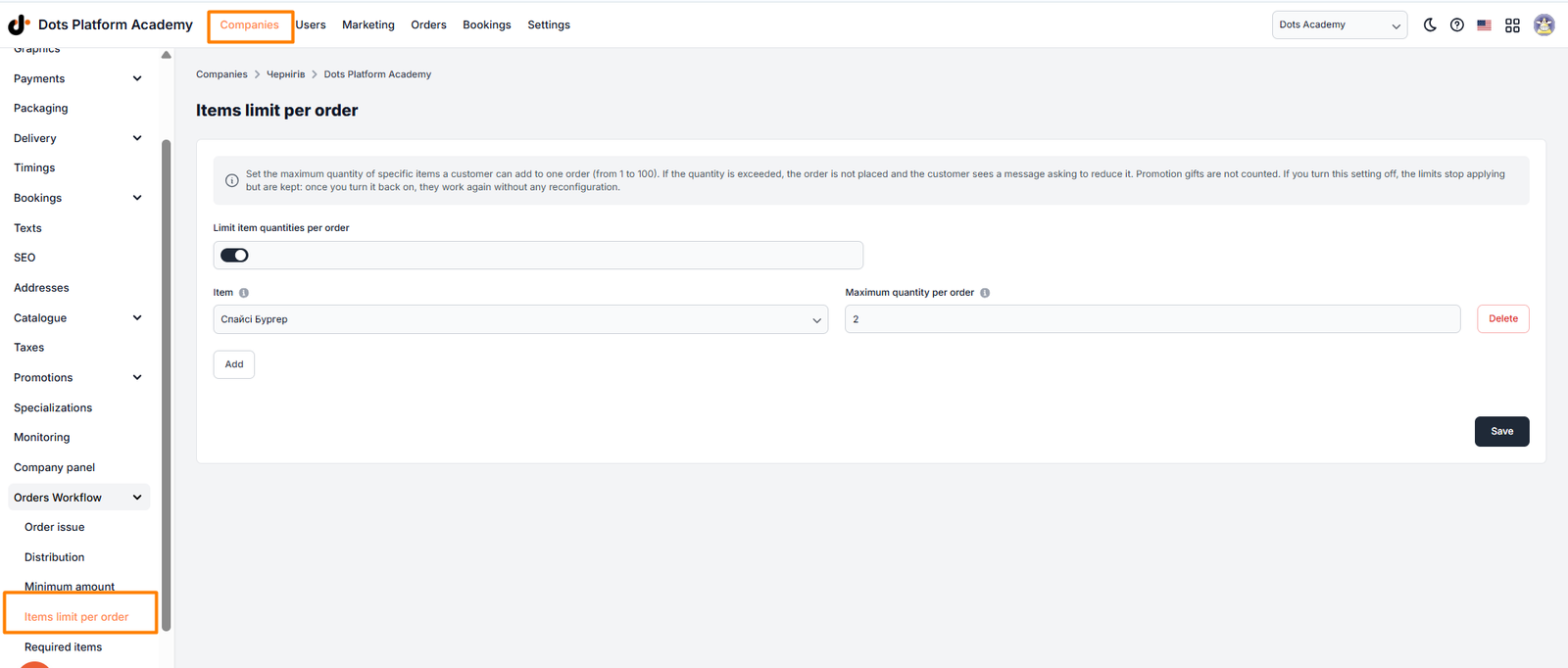
2.1. Accessing the Settings
- In the Control Panel, go to “Accounts” → “Companies”.
- Open the required venue.
- In the venue menu, go to “Order Settings” → “Order Item Quantity Limits”.
2.2. Adding a Limit
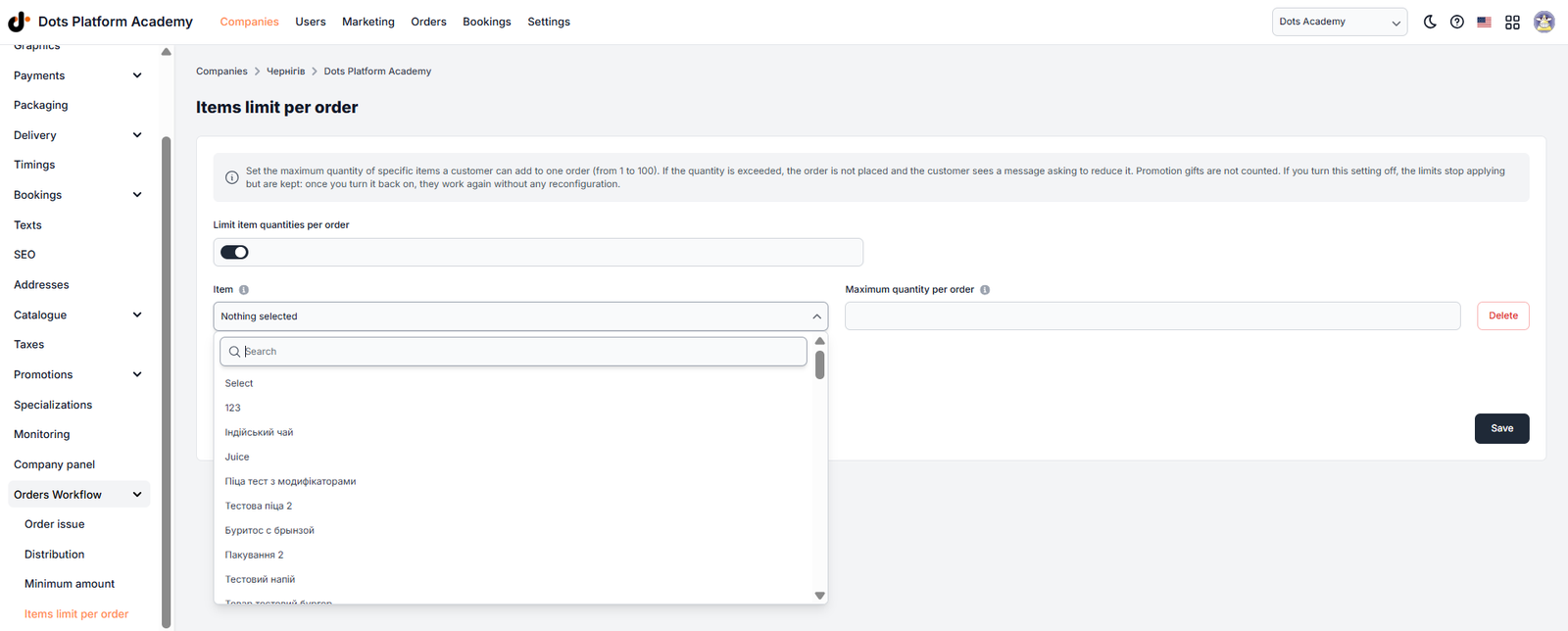
- Enable the “Limit item quantities per order” toggle.
- Click “Add” to create a new row.
- In the “Item” field, select the required item. If the venue has many items, enter part of the item name to search for it.
- In the “Maximum quantity per order” field, enter the maximum number of units a customer can order.
- Add limits for other items if needed. Each item must have its own row.
- Click “Save”.
The permitted limit is a whole number from 1 to 100.
2.3. Editing or Removing a Limit
- Open the “Order Item Quantity Limits” page for the required venue.
- To change a limit, enter a new value in the “Maximum quantity per order” field.
- To remove a limit, click “Delete” in the corresponding row.
- Click “Save”.
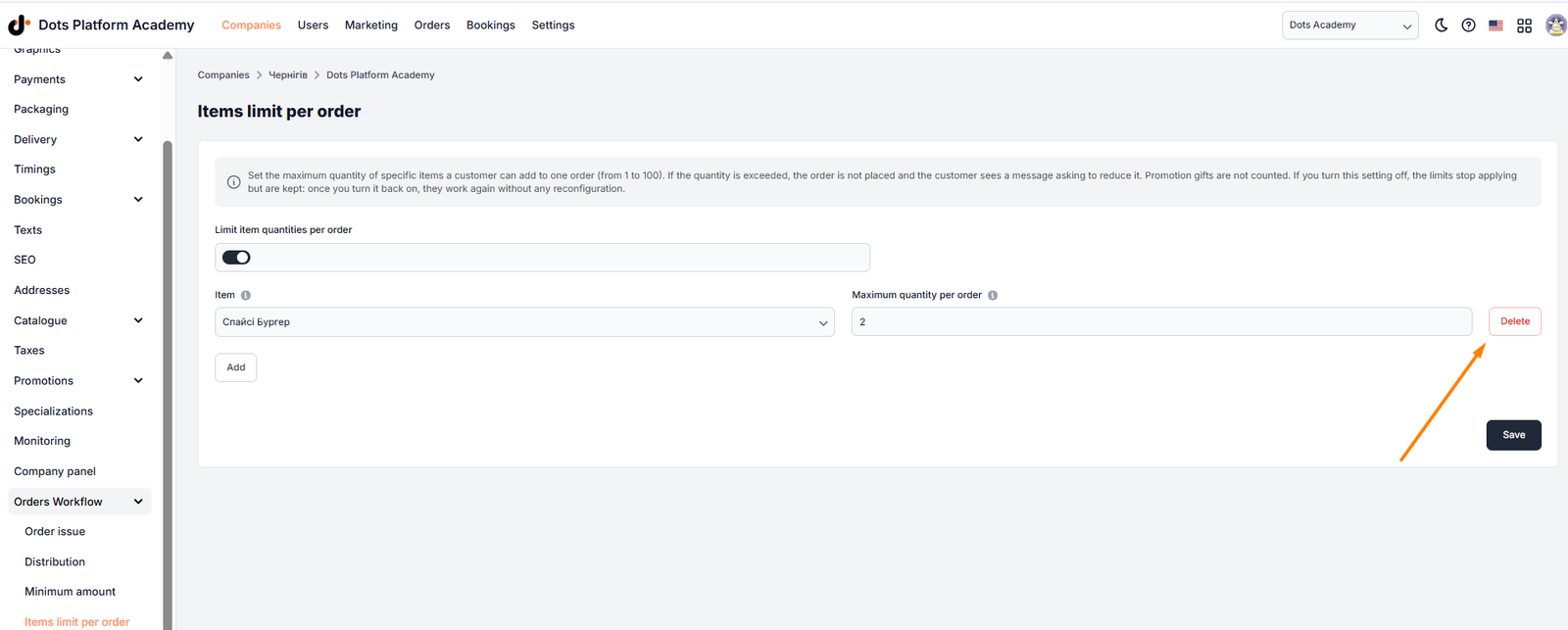 After a limit is removed, customers can order that item in any quantity.
| Note: Changes take effect only after you click “Save”.
2.4. Temporarily Disabling Limits
- Open the “Order Item Quantity Limits” page.
- Disable the “Limit item quantities per order” toggle.
- Click “Save”.
Once the toggle is disabled, the limits become inactive and the configuration rows are hidden.
To reactivate the limits, enable the toggle again and click “Save”. You do not need to configure the limits again.
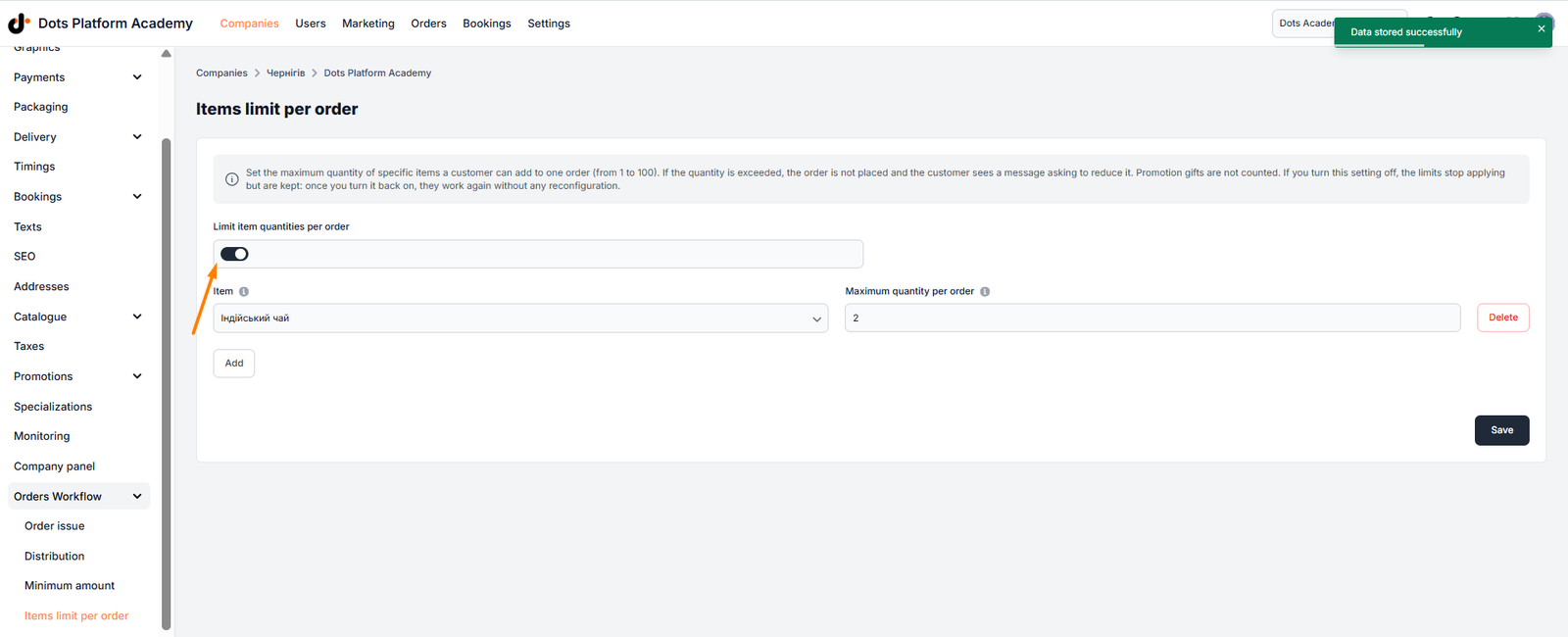
||| Important! If you modify any rows before disabling the toggle but do not save those changes, they will not be saved.
3. Settings Page Overview
The “Order Item Quantity Limits” page contains the following elements:
- Information panel — provides a brief description of the feature.
- “Limit item quantities per order” — a toggle that enables or disables limit enforcement.
- “Item” — a field for selecting the item to restrict.
- “Maximum quantity per order” — a field for entering the limit. Accepted values are whole numbers from 1 to 100.
- “Add” — adds a new row for configuring a limit.
- “Delete” — removes the corresponding configuration row.
- “Save” — saves all changes. All venue items are available in the list, including inactive items. Deleted items are not displayed. If the venue has more than 10 items, a search field is available.
Validation
When the toggle is enabled, the system will not allow you to save the settings if:
- An item has not been selected in a row.
- The same item has been selected in multiple rows.
- The quantity is missing, less than 1, or greater than 100. If an item with a configured limit is deleted from the catalog, its row will disappear from the settings page. The limit will be permanently removed when the settings are saved.
4. What Customers See
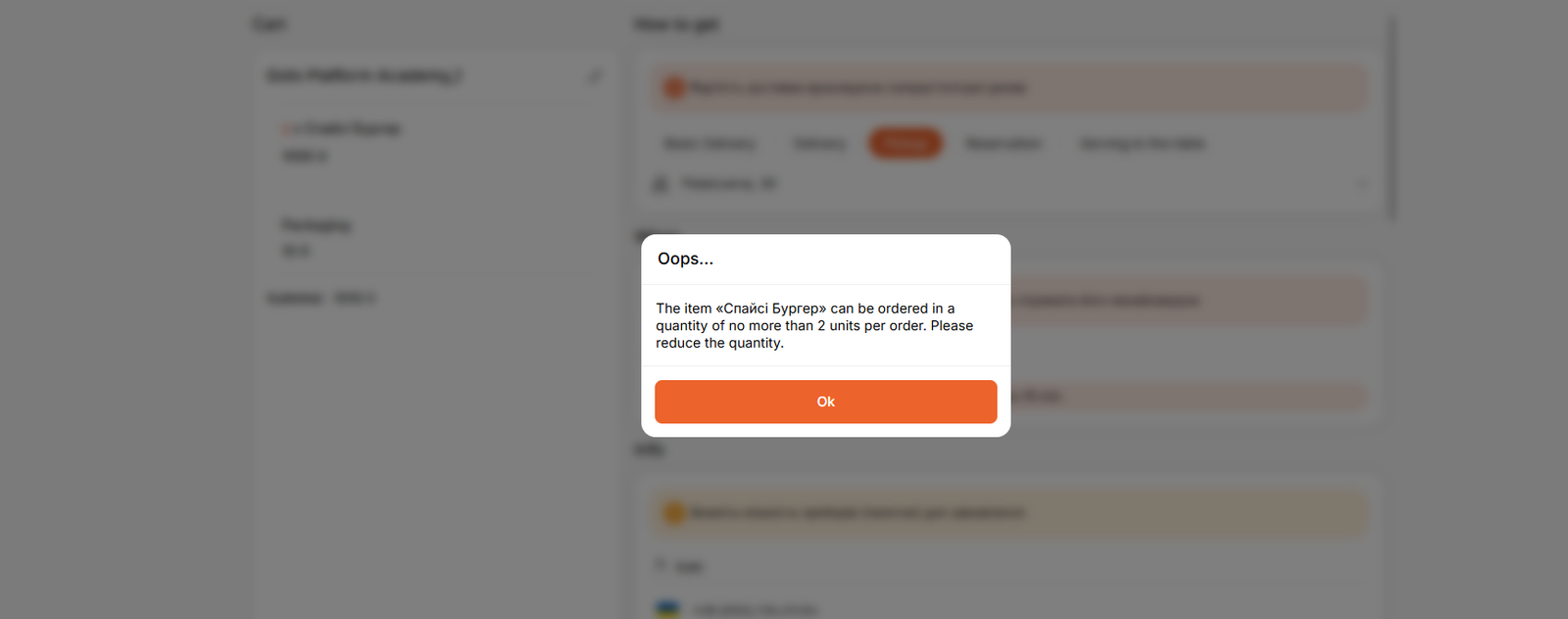
If a customer attempts to place an order that exceeds a limit, the order will not be created. The system displays a message containing the item name and the maximum permitted quantity.
Example message:
“Item ‘Item Name’ can be ordered up to N units per order. Please reduce the quantity.”
The message is displayed in the language the customer uses on the website or in the mobile app. The wording of the quantity unit is adjusted according to the number.
Once the customer reduces the item quantity to the permitted amount or below, they can place the order as usual.
If multiple items exceed their limits, the system displays a message for the first item that exceeds its limit. After the customer corrects the quantity, a message may appear for the next item.
5. Use Cases
- Promotional items. A special-price pizza is limited to 2 units per order to prevent one customer from purchasing the entire promotional allocation.
- Limited stock. An item available in small quantities is limited to 5 units per order so that more customers have a chance to purchase it.
- Items with modifiers. If the limit for a burger is 3, a customer can order 3 burgers in total, for example, 2 with cheese and 1 without cheese. The limit does not apply separately to each variation.
- Promotional gifts. If the limit for a drink is 1 and a customer receives another drink as a promotional gift, the order is accepted. The gift does not count toward the limit.
- Venue duplication. When a venue or its catalog is copied, the limits are copied along with the items. We recommend checking the limits of the new venue after copying. Tip: To inform customers about restrictions in advance, include the item limit in the item description.
6. Frequently Asked Questions
A customer cannot place an order and sees a quantity warning. What should I do?
The quantity of an item in the cart exceeds the configured limit. The customer needs to reduce the quantity in their cart. If the venue wants to allow a larger quantity, increase or remove the limit in the venue settings.
Why does the warning appear if the quantity in each cart row is within the limit?
The quantities of the same item are combined across the entire order. For example, if a customer adds the same item with different modifiers, all units count toward the same limit.
Are promotional gifts included in the limit?
No. Gifts received through promotions are not counted toward the limit.
Can different limits be configured for different addresses of the same venue?
No. Only one limit can be configured per item, and it applies to all addresses of the venue.
Do limits apply to orders from Glovo and other marketplaces?
No. Limits apply only to orders placed by customers through the venue's website or mobile app.
Why is the “Order Item Quantity Limits” option missing from the menu?
The page is available only if the account's subscription plan includes the feature and the user has permission to edit the venue. The option is located in the venue menu under “Order Settings” → “Order Item Quantity Limits”. The “Order Settings” section itself is displayed if the subscription plan includes at least one feature available in that section.
Why can customers order more than the configured limit?
Check that the “Limit item quantities per order” toggle is enabled and the settings have been saved. If the toggle is disabled, the limits remain saved but are not enforced. Also, check whether the feature is included in the account's subscription plan. If it has been removed from the plan, limits for all venues in the account are disabled but remain saved.
Why is an item missing from the list when configuring a limit?
Check that the item belongs to the required venue and has not been deleted from the catalog. Inactive items are available for selection, but deleted items are not displayed.
Do changes to limits affect existing orders?
No. Limits are checked when a new order is placed. Existing orders remain unchanged.
Are limits checked for repeat orders?
Yes. When a customer places a repeat order, the system checks the current limit in effect at the time the order is placed.
Was this article helpful?
Thanks for your feedback!