
POS orders in the Monitoring Panel
Dots Platform allows you to automatically upload orders to various POS systems. To do this, you need to sync your POS system with Dots Platform and set up integration for each individual company location. In addition, you need to add external product identifiers from the POS system to Dots, and set up identical promotions on both platforms.
Dots Platform allows you to set up integration with POS systems such as Poster, iiko, Restart, Servio and RKeeper. In addition, integration with other POS systems is available through the webhook API.
Depending on the POS system you are using, the order can be uploaded to POS manually or automatically. Automatic uploading of the order happens immediately after its acceptance by the company manager/cashier. After unloading, management and work with the order must be carried out in the terminal of the POS system. After uploading, cashiers/waiters manage an order through a POS system register.
Important: Do not change the status of POS orders, after they are accepted by the location.
In case of uploading problems, do the following:
-
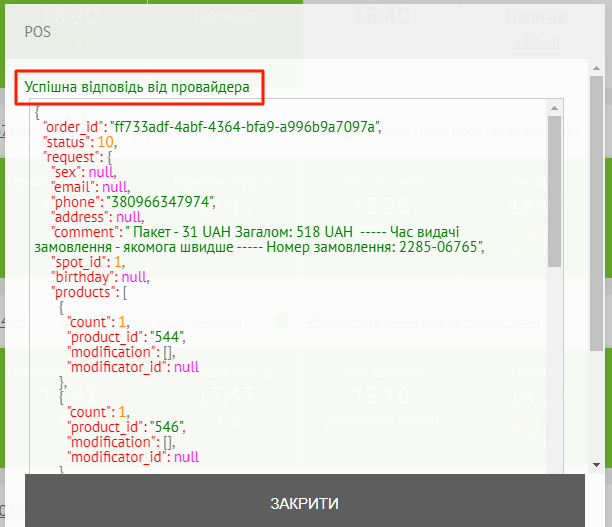
Open the order upload to the POS system and make sure that the operation was successful. If it failed, check the "Auto-synchronization when confirming an order." parameter in the integration settings for the selected location. If there’s an error in the history of actions, refer to the article on setting up the corresponding POS system (see above).

-
Check the POS system integration settings in the Control Panel. To do this, select a city at the bottom of the Control Panel menu and go to Companies > select a company > Locations > select a location > POS.
-
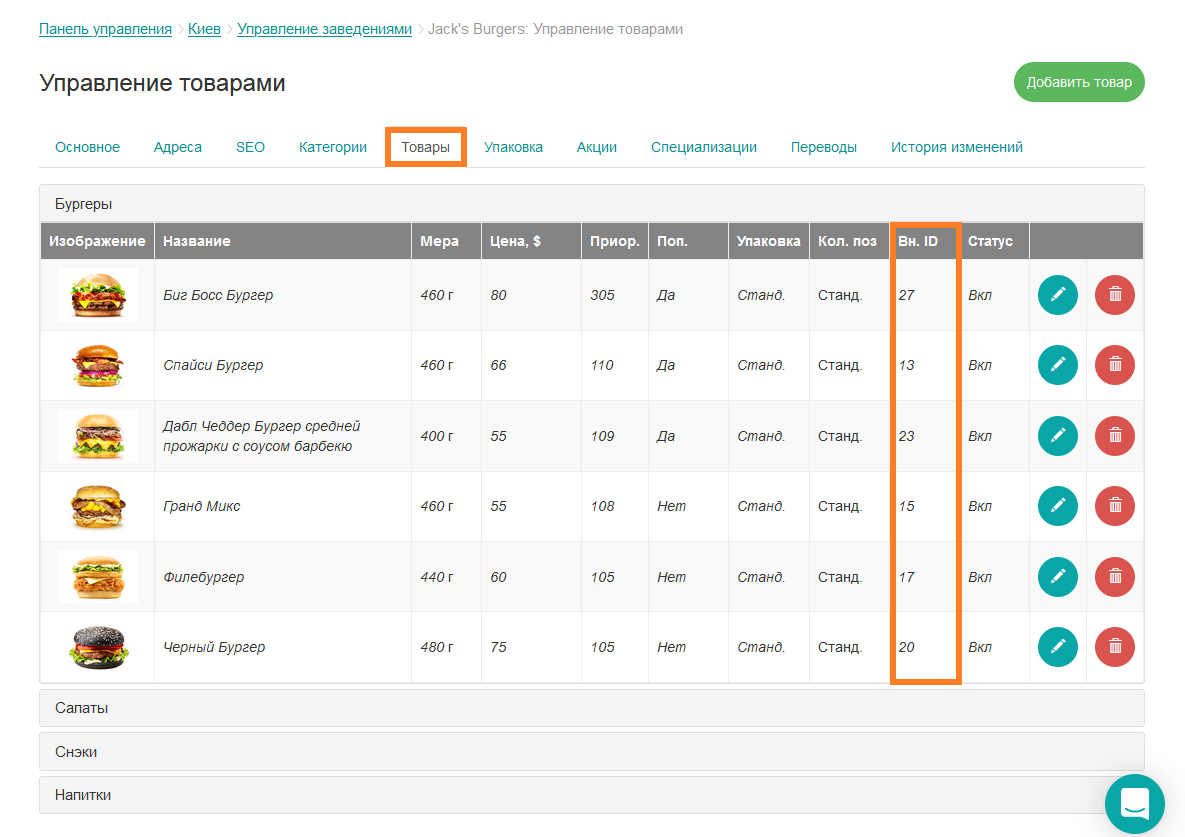
Make sure that all products and their modifiers have external IDs.
-
Make sure that there are no changes in the company menu, as in this case the changes must be made in the POS system menu as well.


Link to this article: https://dots.wiki/389E
Was this article helpful?
Thanks for your feedback!