
2.0 Control Panel. Cities. Marketing. Promo codes
Information about all promo campaigns is available in the Promo campaigns tab. It appears only when you select a city in the city menu. Promo campaigns contain promo codes of specific promotions of a city or company. Use this tab to add and manage your promo campaigns.
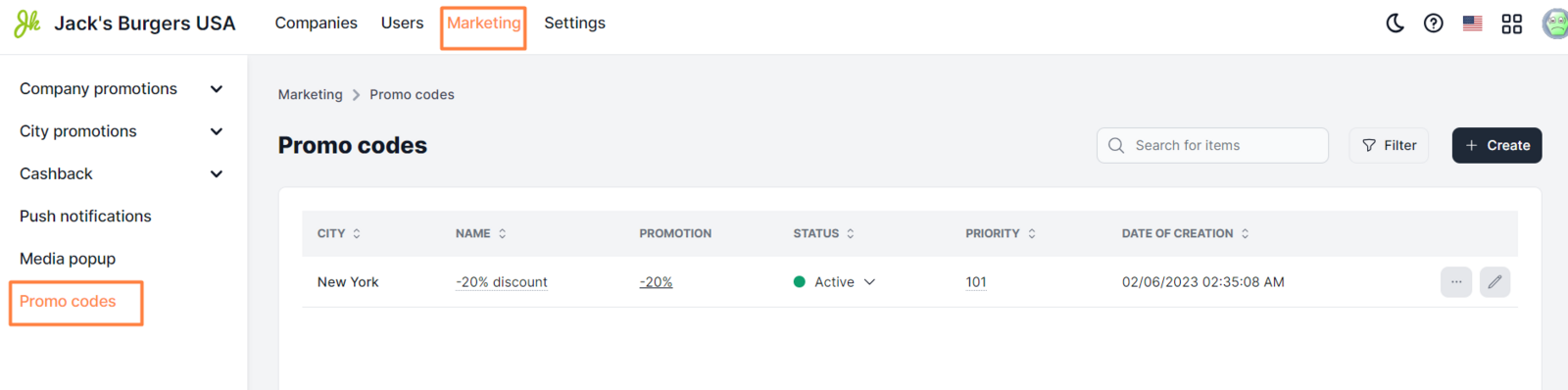
|| !Note: The Promo campaigns subsection appears in the city management block when you select a specific city.
Available elements:
At the top of the page, there are filters that allow users to quickly find the desired promo campaign.
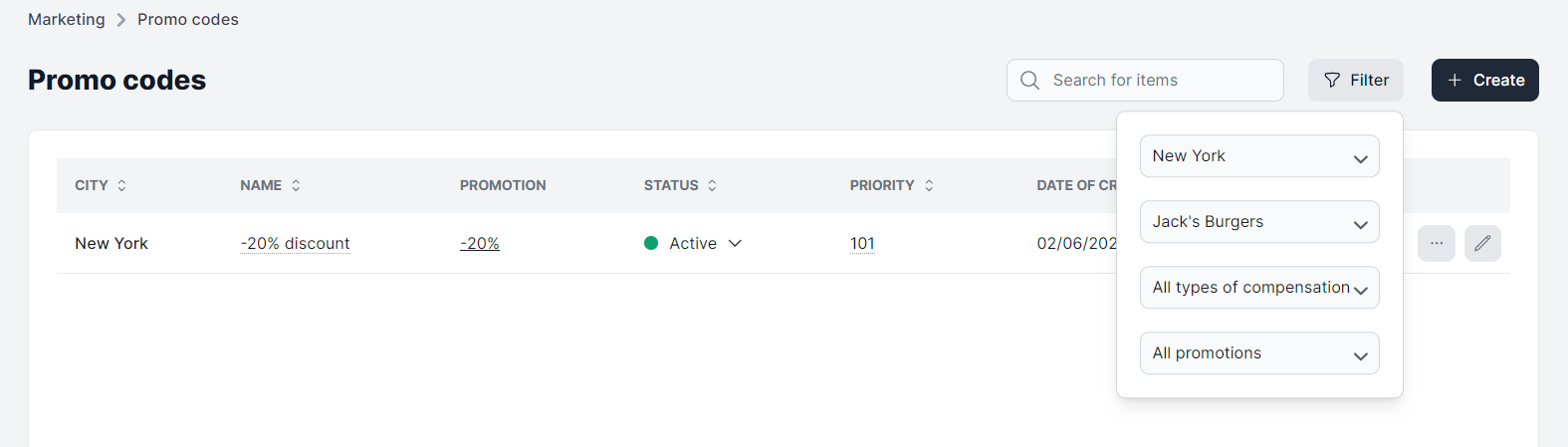
- City.
- Company. Lets the user select all or a specific company.
- Who will compensate the promo-code. Lets you select who compensates the promo code (city or company).
- Promotion type. Lets the user select the specific type of promotion.
The Create button opens the page for creating a new promo campaign.
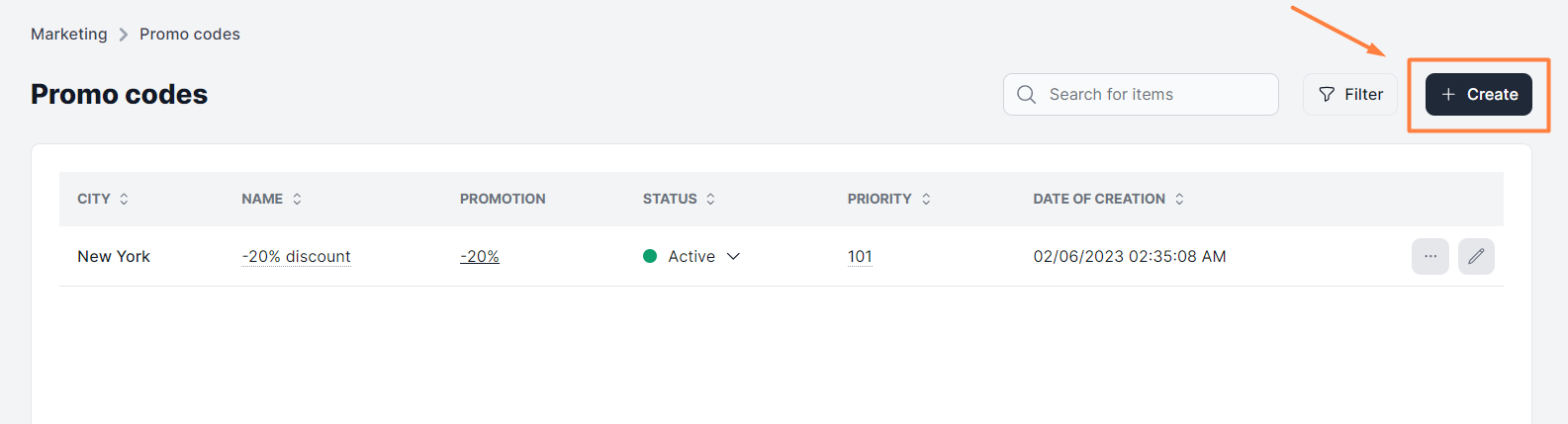
List of promo campaigns
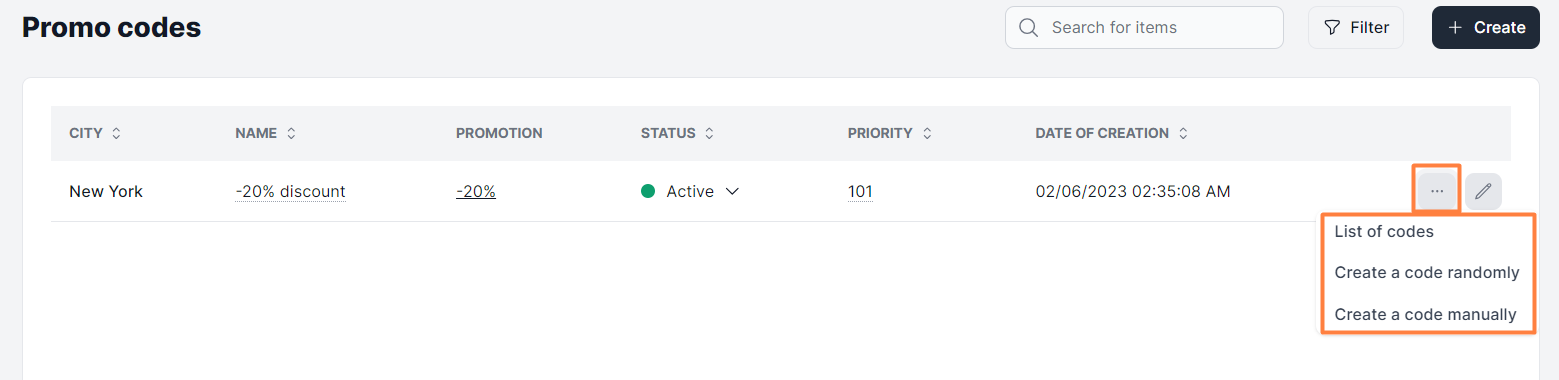
- City.
- Name. Name of a promo campaign. Double-click on the name to change it.
- Promotion. Link to the editing page of the promotion, which is linked to the promo campaign.
- Status. Current status of a campaign. Double-click on the current status to change it. Available statuses: Active. The promo campaign is active. Customers can use campaign promo codes. Inactive. The promo campaign is disabled. Customers can’t use the campaign promo codes.
- Priority. The priority value that affects the place of the campaign in the list. The higher the value, the higher place in the list. Double-click on the current value to change it.
- ** Date of creation**. Date and time of adding a promo campaign.
- A quick access button to the settings. Opens access to the promo code settings - List of codes, Create a code randomly, Create a code manually.
- Pencil icon. Opens the page for editing a promo campaign.
Link to this article: here
Was this article helpful?
Thanks for your feedback!