
2.0 Control panel. Editing a Company. Copy Catalog
This function allows you to create a copy of the catalog in the selected city and the selected institution. When copying, it is possible to transfer categories, products, modifiers, groups of modifiers, packaging and promotions.
| In order to be able to copy the Catalog, the user must have access to the management of institutions to which the Catalog must be copied.
Copying the Catalog
- Select the Company section in the Control Panel.
- Click on the edit icon opposite the desired company.
- Go to the Copy tab => Catalog.
- Specify the City and Institution where you want to copy the Catalog.
- Select the directory components you want to copy.
- Click Save.
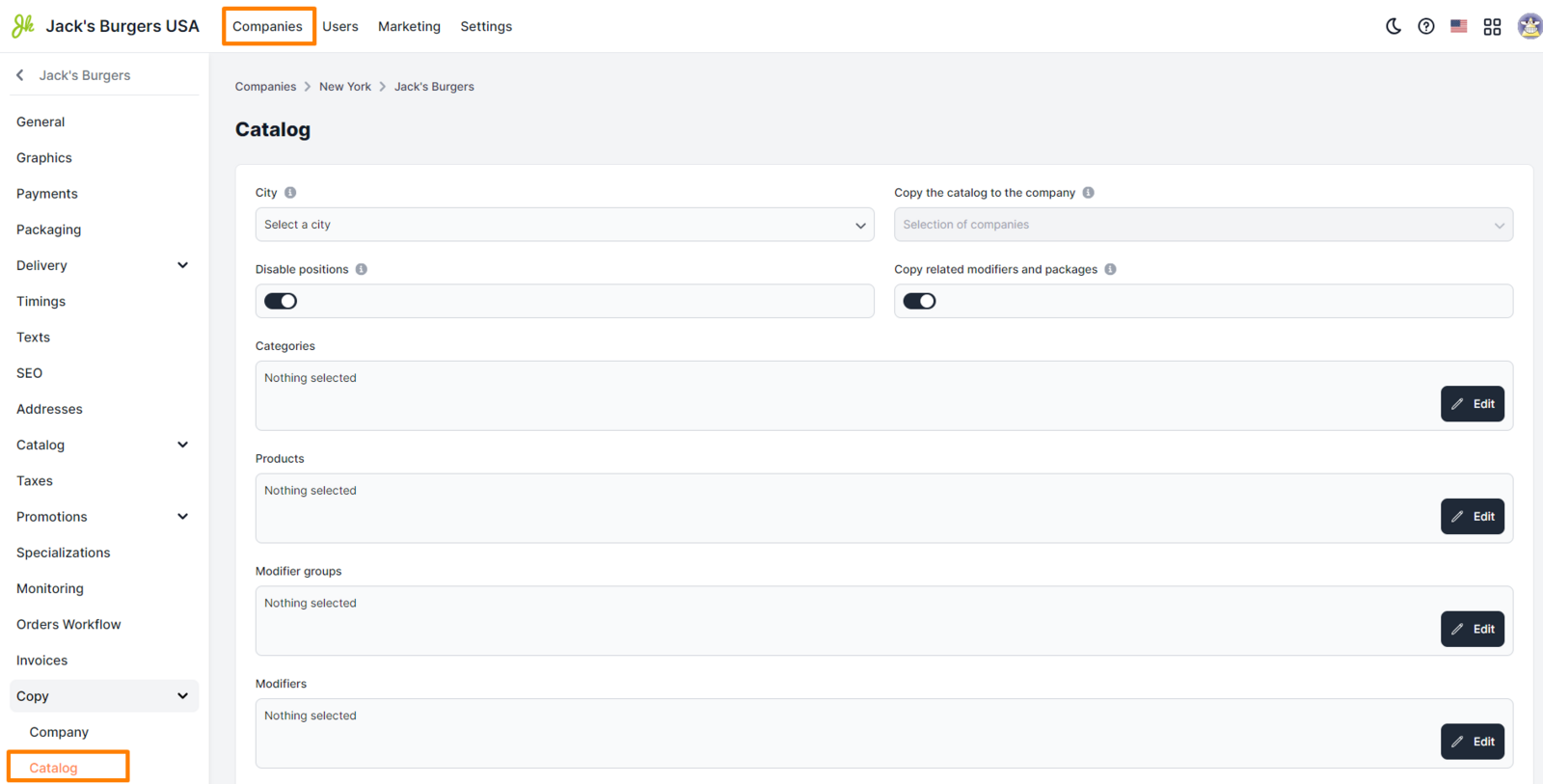
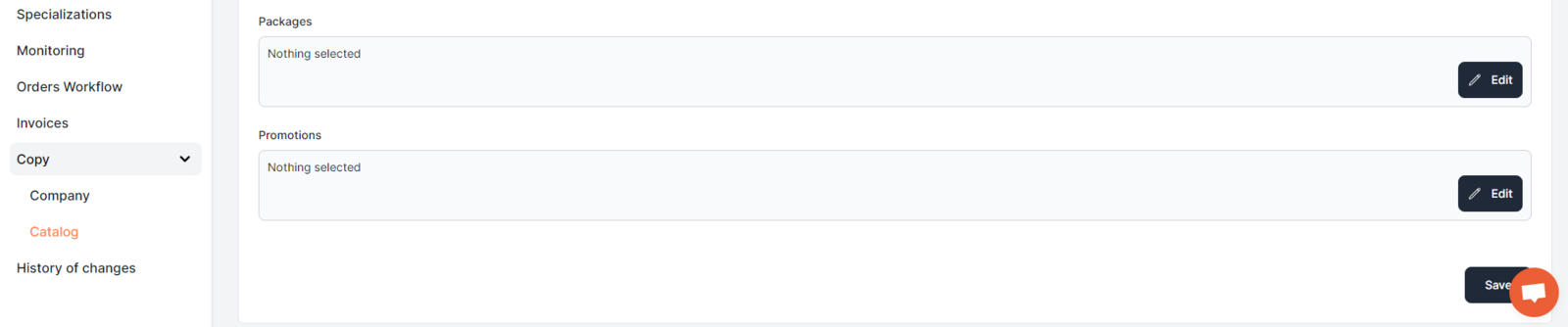
Settings options:
-
City. Choose the city where the institution is located, to which the Catalog will be copied.
-
Copy the catalog to the company. The product catalog will be copied to the selected institution.
-
Turn off positions. On - make positions inactive after copying. **Off **- leave the positions as they are.
-
Copy related modifiers and packaging. On - copy modifier groups, modifiers, and packaging related to categories and products. Off - copy only selected groups of modifiers, modifiers and packs.
-
**Categories. **When you click the Edit button, a window will open with a selection of Categories to copy. || Importantly! If you select only "Categories" and do not select "Products", then only the Category names without filling will be copied.
-
Goods. When you click the Edit button, a window will open with a selection of Products to copy. || Note! Only uncategorized products can be copied. When copying, the Product Category will be created automatically.
-
Groups of modifiers, Modifiers, Packaging and Promotions. Clicking the Edit button will open a window with a selection to copy.
|| Importantly! Promotions are copied in "Inactive" status. Promo codes are not copied.
Link to this article: here.
Was this article helpful?
Thanks for your feedback!