
2.0 Control panel. Settings. Interfaces. Web: Main page. Mini slider
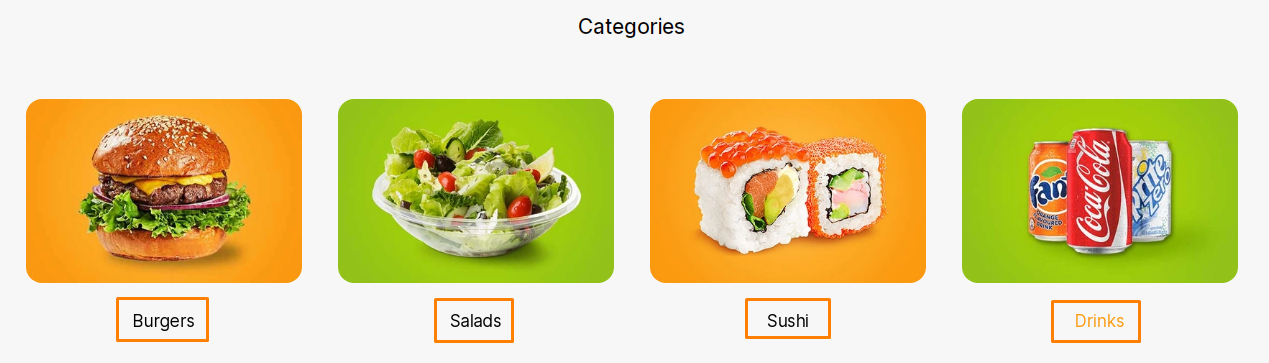
This block may contain images with links to the menu, categories of products (dishes), or special offers for customers.
To set up the block:
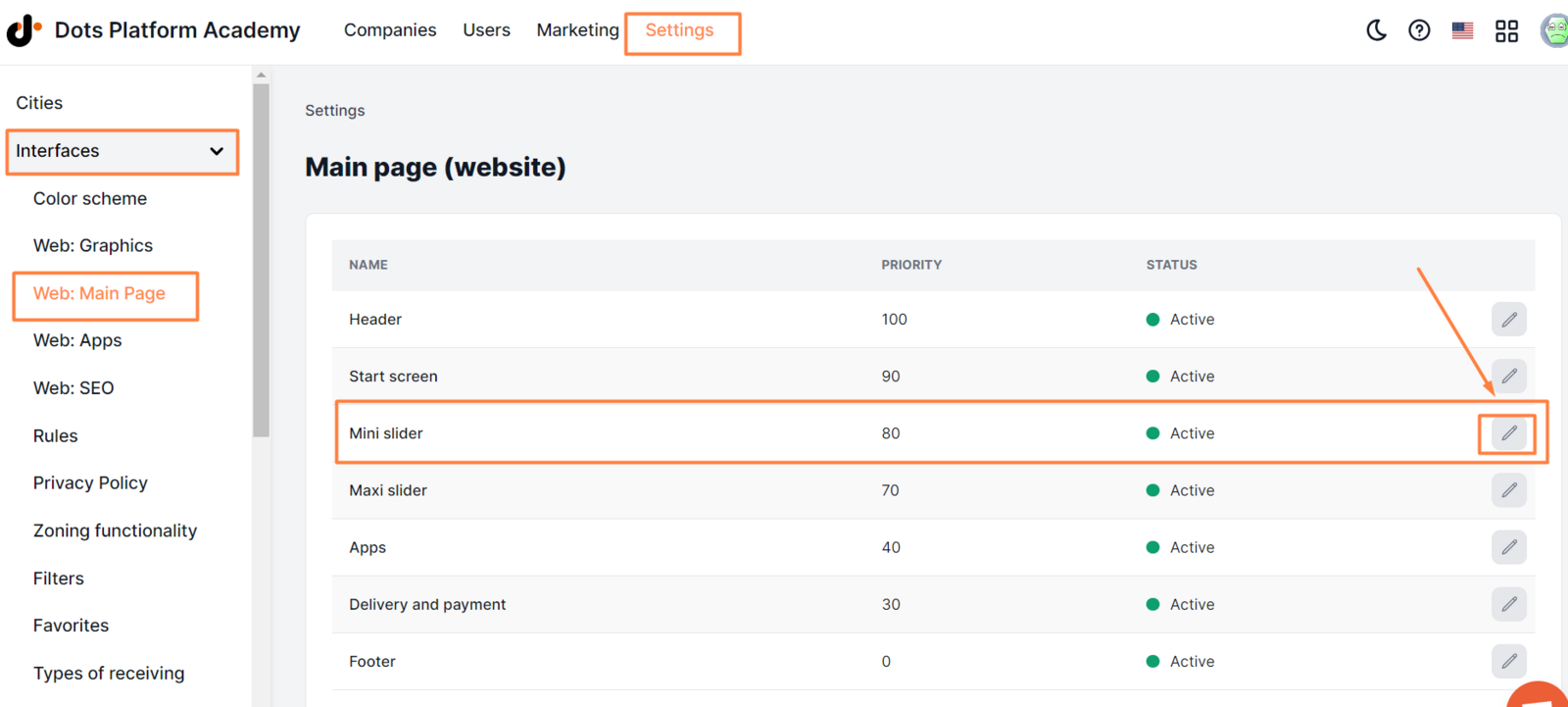
- In the Control Panel, click Settings.
- Go to the Interfaces → Web: Main page tab.
- Find the Mini slider block and click the pencil icon.
- In the General, Slides and Translations tabs, add all necessary information (more details below).
- Click Save.
General tab
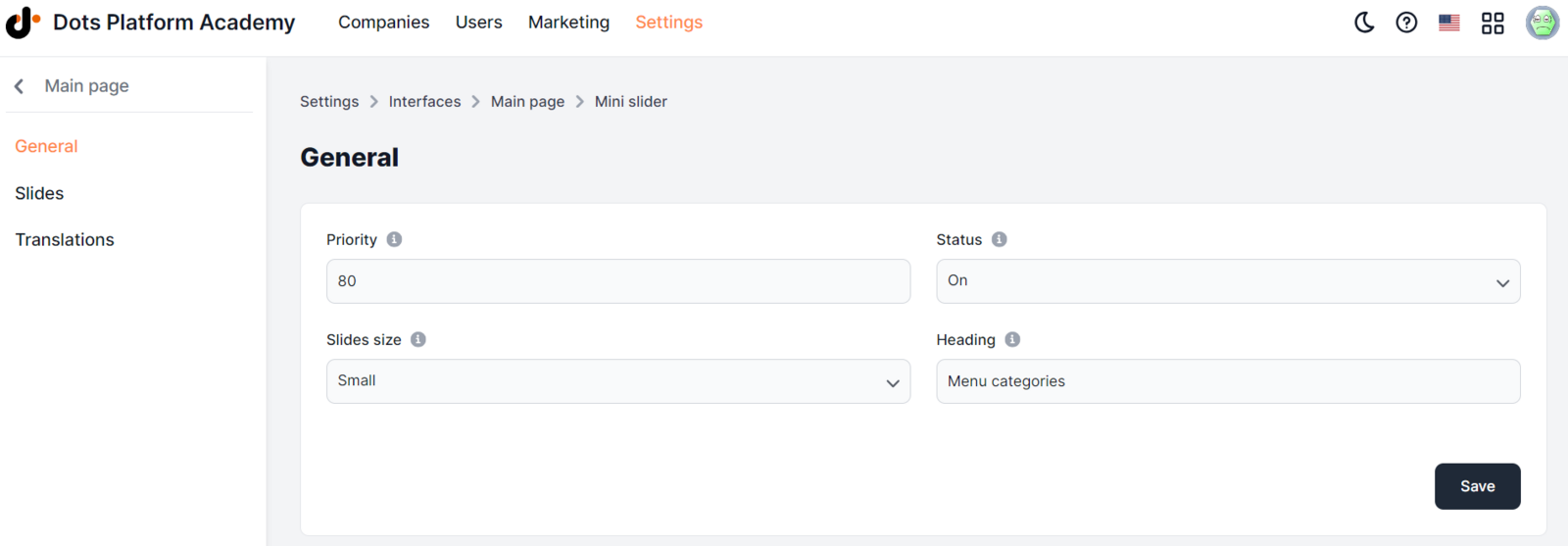
Available parameters:
-
Priority. The value that affects the palace of the block on the home page. The higher the value, the higher the place. Valid values are from 1 to 99.
-
Status. The current status that affects the availability of the block on the home page. Available statuses: On. The block is available on the home page. Off. The block isn’t available on the home page.
-
Heading. Block’s title that has up to 75 symbols.
** Examples ** Categories How to make an order Our restaurants
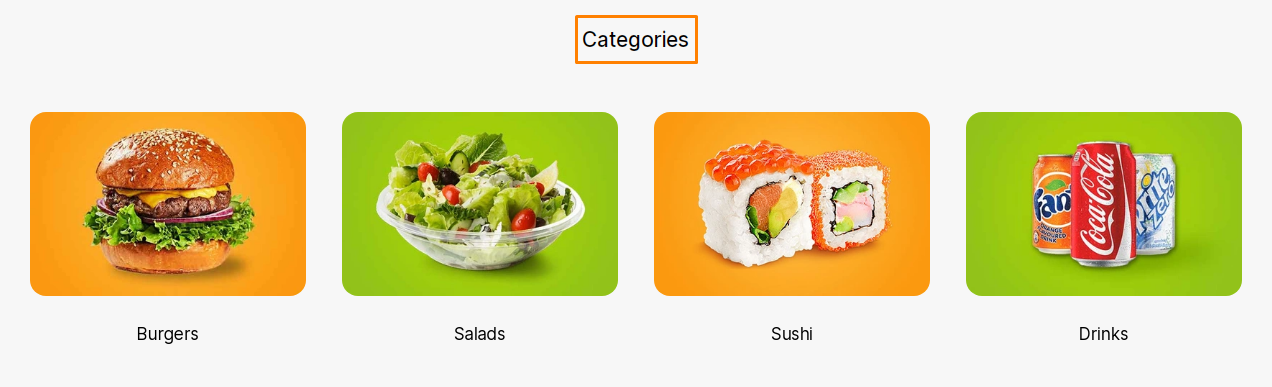
To add the heading text in other available languages, go to the Translations tab.
Slides tab
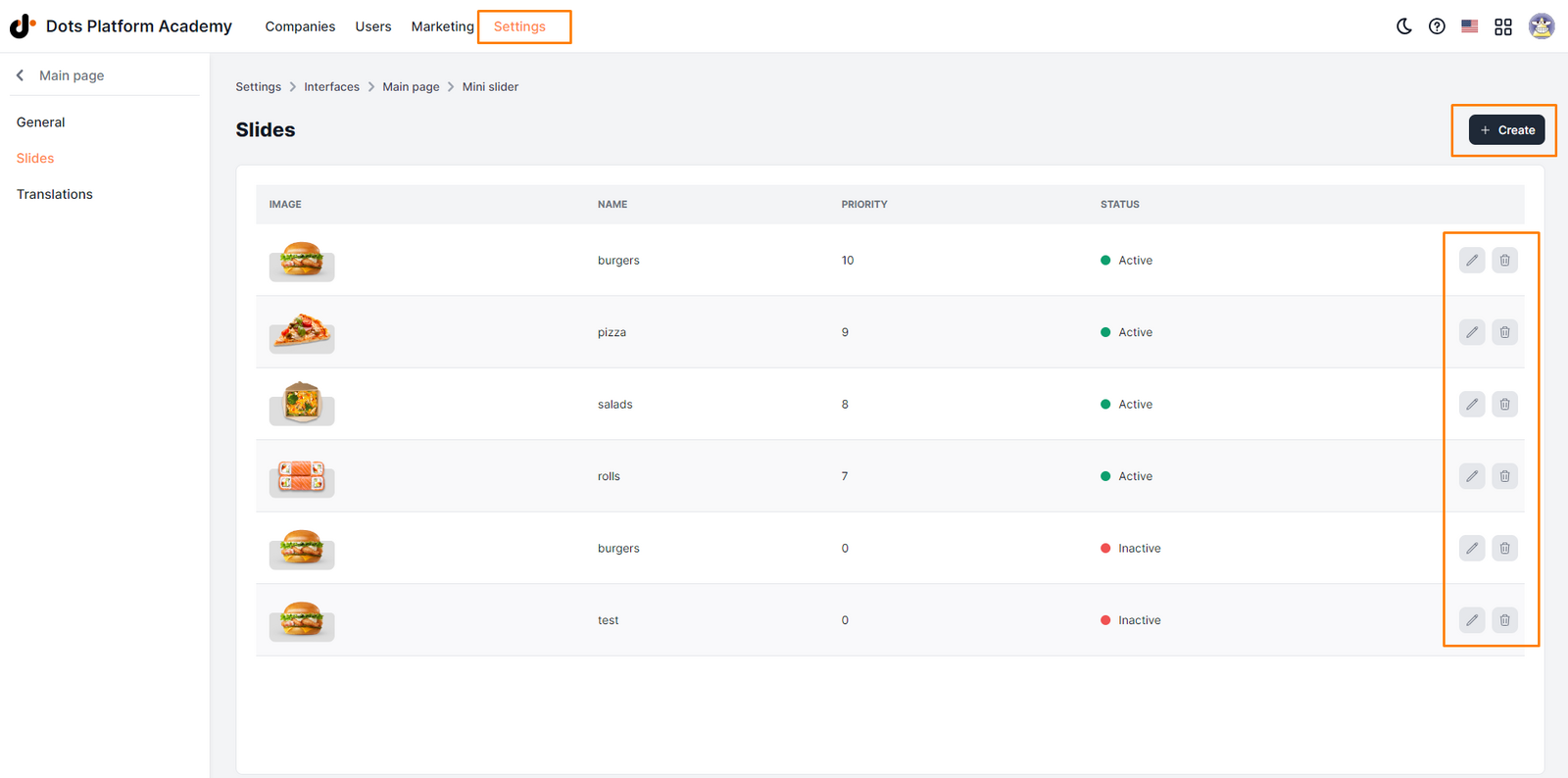
This tab contains a list of all slides that appear in the Mini slider block. Manage slides using the icons in the list.
Available elements:
-
Add a slide. Lets you add a new slide.
-
Pencil icon. Opens the editing page.
-
Trash can icon. Permanently deletes the slide.
When adding or editing a slide, the following parameters will be available:
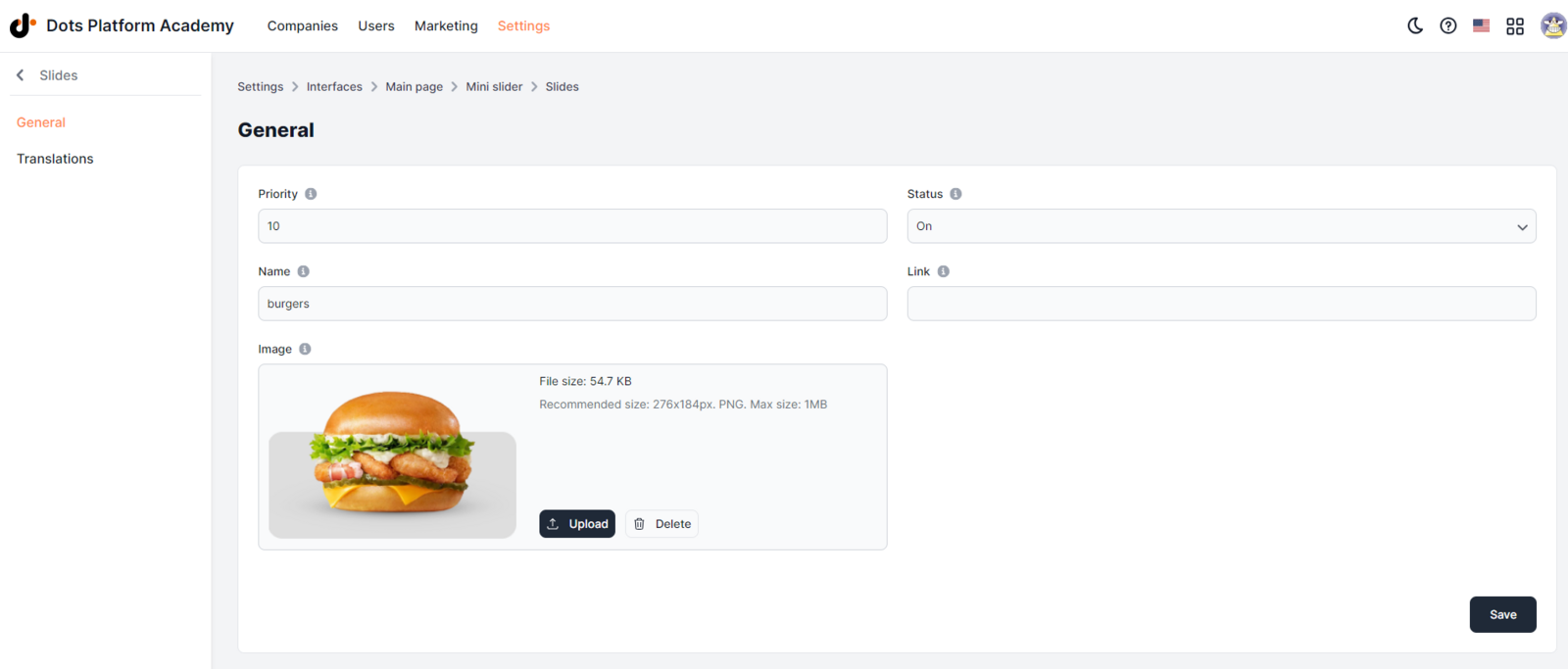
- Image. The uploaded image must have a resolution of up to 552х368 PX, have a 3:2 aspect ratio, and be in JPG or PNG format. File size should not exceed 1 MB.

- Name. Text that appears under the image. Must have no more than 18 symbols.
- Link. Link to the page, that appears when clicking on the slide. The field must contain the entire link, including "https://".
** Example ** https://jacksburgersbar.com/en/kyiv/jacks-burgers/burgers
-
Priority. The value that affects the place of a slide in the block. The slide with the highest priority will be on top.
-
Status. The current status that affects the availability of the slide in the block. Available statuses: On. The slide is available in the slider. Off. The slide isn’t available in the slider.
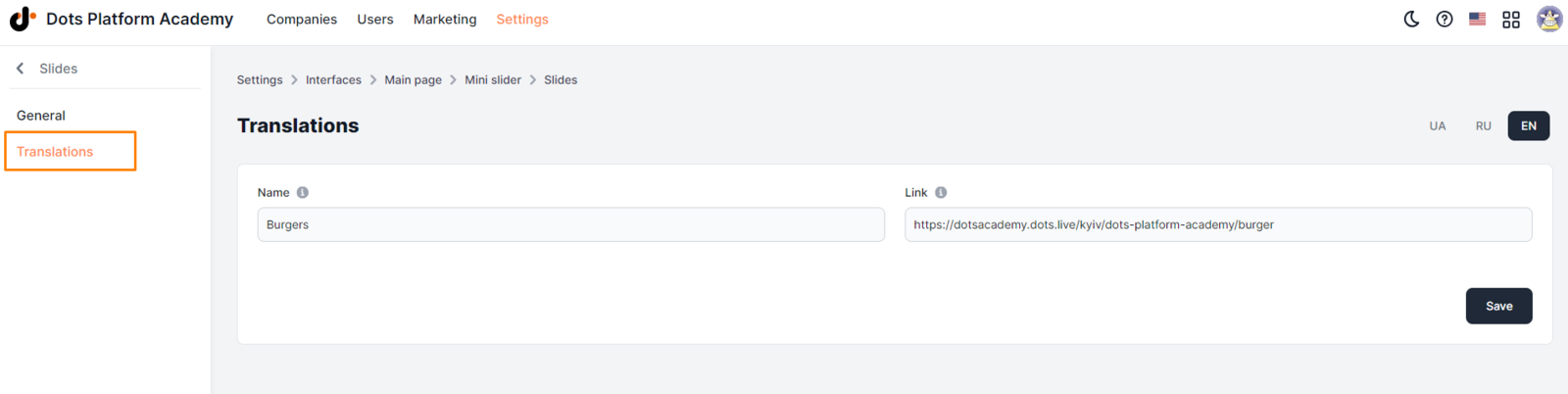
Use the Translations tab to add the name and link of a slide in other available languages.
Link to this article: here
Was this article helpful?
Thanks for your feedback!