
2.0 Control panel. Settings. Taxes. General
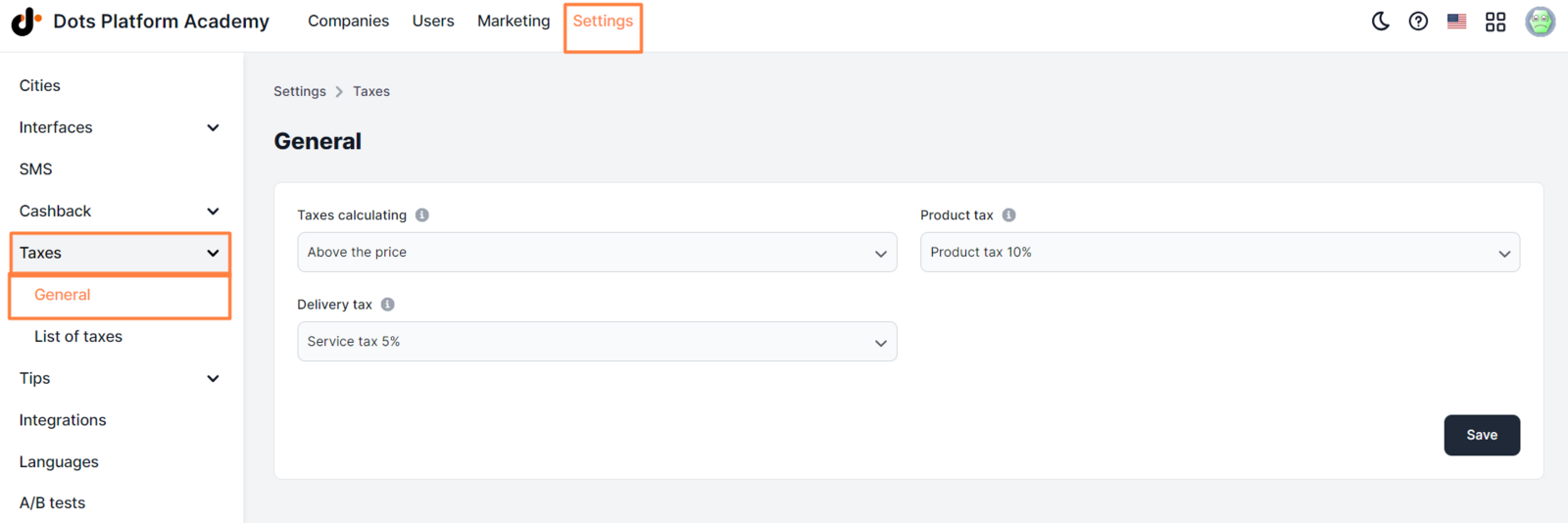
In this tab, you can configure taxes that will be automatically added to the order price if necessary. You can create a product tax and a shipping tax separately.
Settings.
- Open the Settings section in the Control Panel.
- Go to the Taxes => General tab.
- Make the necessary settings in the fields.
- Click Save.
Requirements for setting up
Taxes calculating. Do not calculate - taxes will not be taken into account and displayed in the system.
Above the price - the tax will be calculated on the value of the product, delivery or packaging. Will be charged additionally.
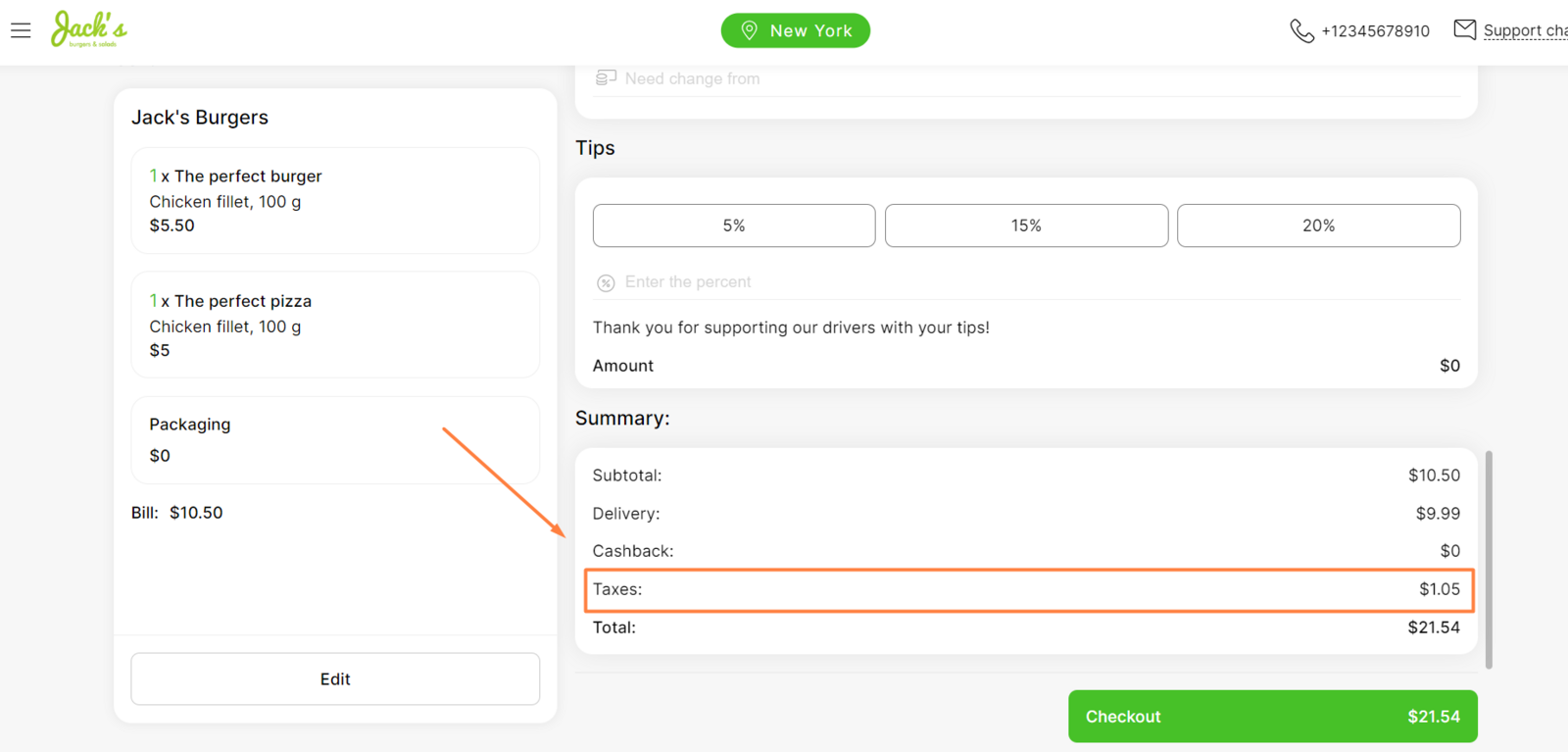
|| Important! To display taxes on the checkout, you also need to enable the selected taxes. Read more in the article at the link
Product tax. Select a tax from the list of created ones. Only taxes of the Product tax type are displayed in the list. To create a tax, go to the Taxes list and click the New button.
Delivery tax. Select a tax from the list of existing ones. The list displays only taxes of the Service tax type. To create a tax, go to the Taxes list and click the New button.
Examples of display
See also:
**How to create a tax - link **
Link to this article: here
Was this article helpful?
Thanks for your feedback!