
2.0 Control panel. Users. Users. Users list. Create a user. Restaurant manager
Creating a restaurant manager allows you to add a user who will be available to manage one or more businesses in the selected city.
Creating a restaurant manager
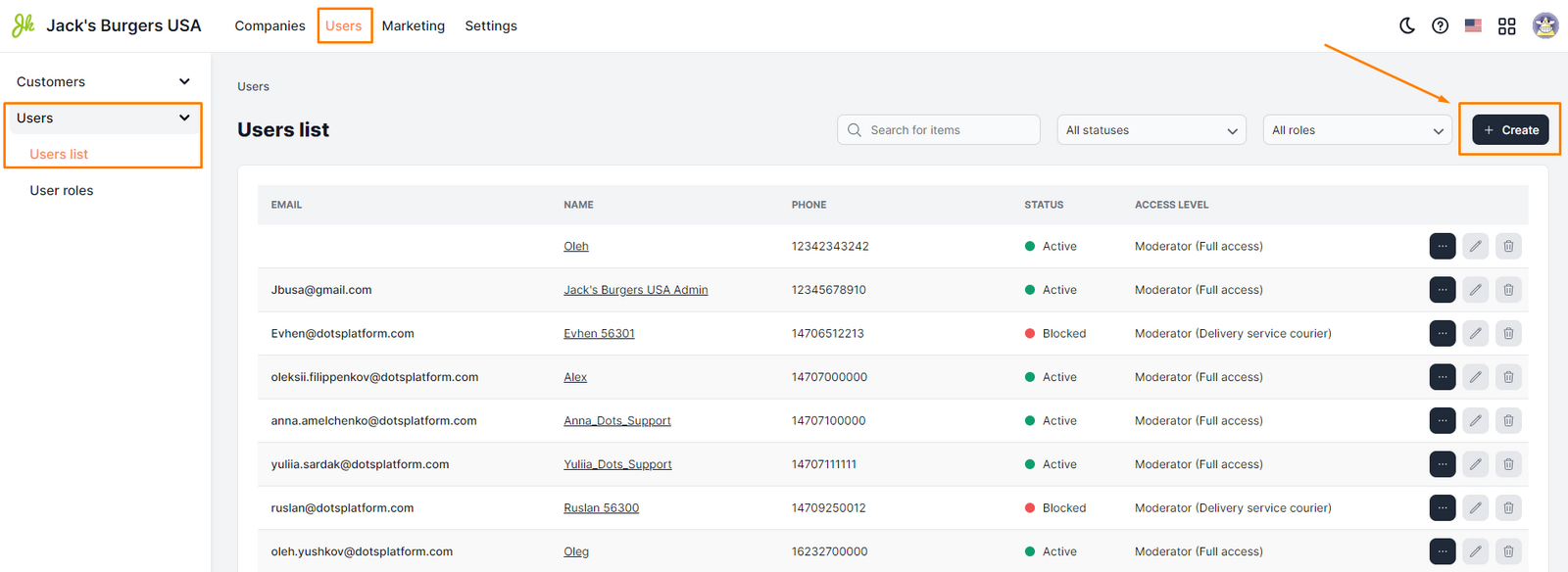
- Go to Users => Users => Users List in Control Panel.
- Click the Create button.
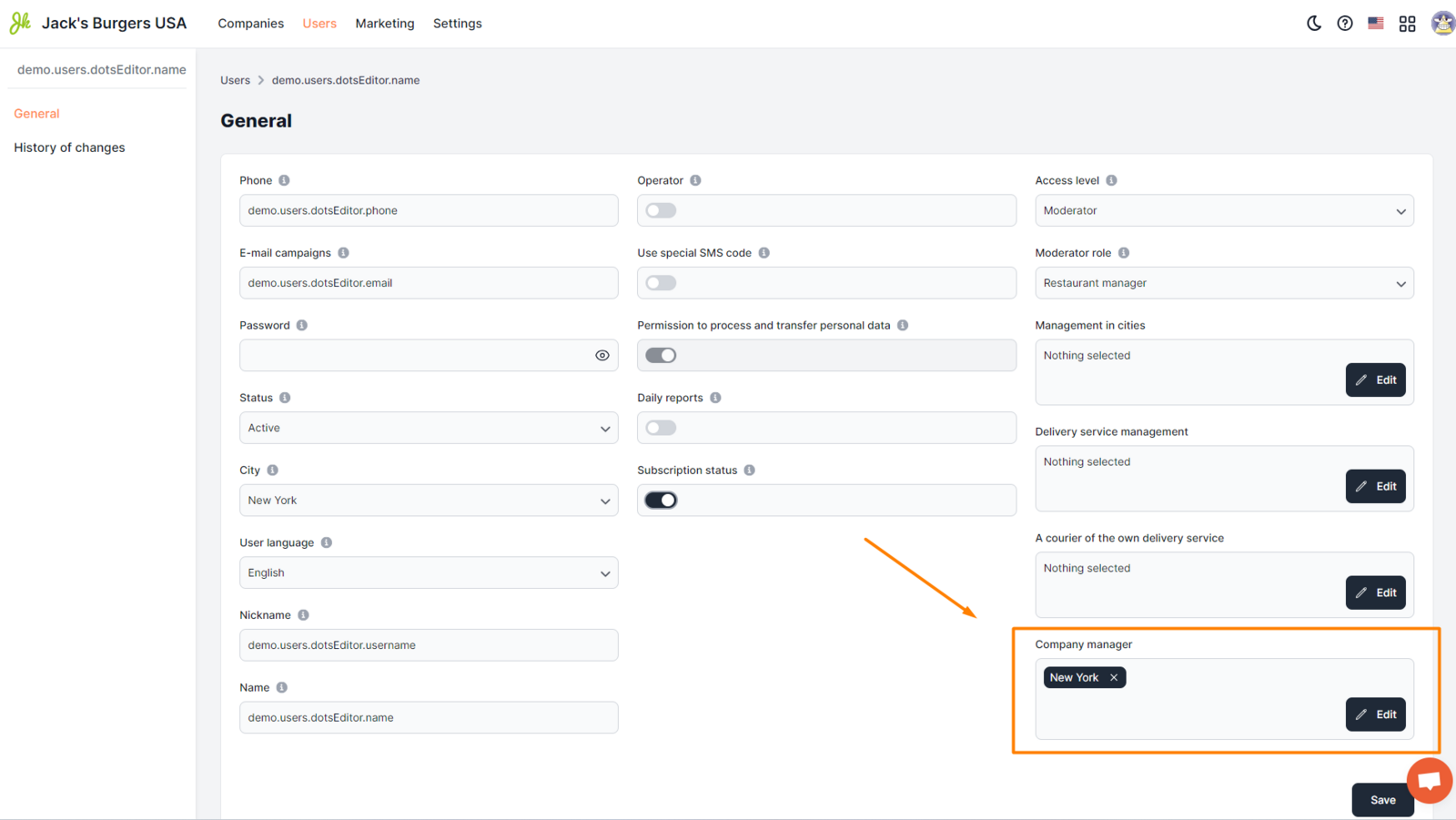
- Fill in all the fields in the tab.
- Click Save.
Field requirements
-
Phone. Phone number of the manager. This field allows you to enter only one phone number, which is specified in an arbitrary format. Examples 380990000000 0980000000 || Note: This field is mandatory. In case of incorrect entry, entry of two numbers or failure to fill in the field, a corresponding message will appear.
-
Email. The manager's email address used for authorization in the Control Panel. Examples [email protected] [email protected]
-
Password. A unique user password that will be used to log in to the control panel. It is specified in an arbitrary format.
-
Status. Select "Active".
-
Name. The username that will be displayed in all elements of the system. Filling in this field is mandatory. It is specified in an arbitrary format. Examples Sergey Viktorovych Andrew Svetlana
-
**I agree to the processing and transfer of personal data **- the toggle is active.
-
Subscription status – toggle is active.
-
Access level. Select Moderator.
-
The role of the moderator. Select "Restaurant Manager".
Choose the city and the company(s), the management of which will be available to the restaurant manager. ||| Attention: Selecting the city and companies is mandatory to access and manage them.
Link to this article: here.
Was this article helpful?
Thanks for your feedback!