
2.0 Set the recommended number of orders per hour for 1 location
You can set the recommended number of orders per hour for a single location. It allows you to inform your employees about the overall location workload.
To set the recommended number of orders:
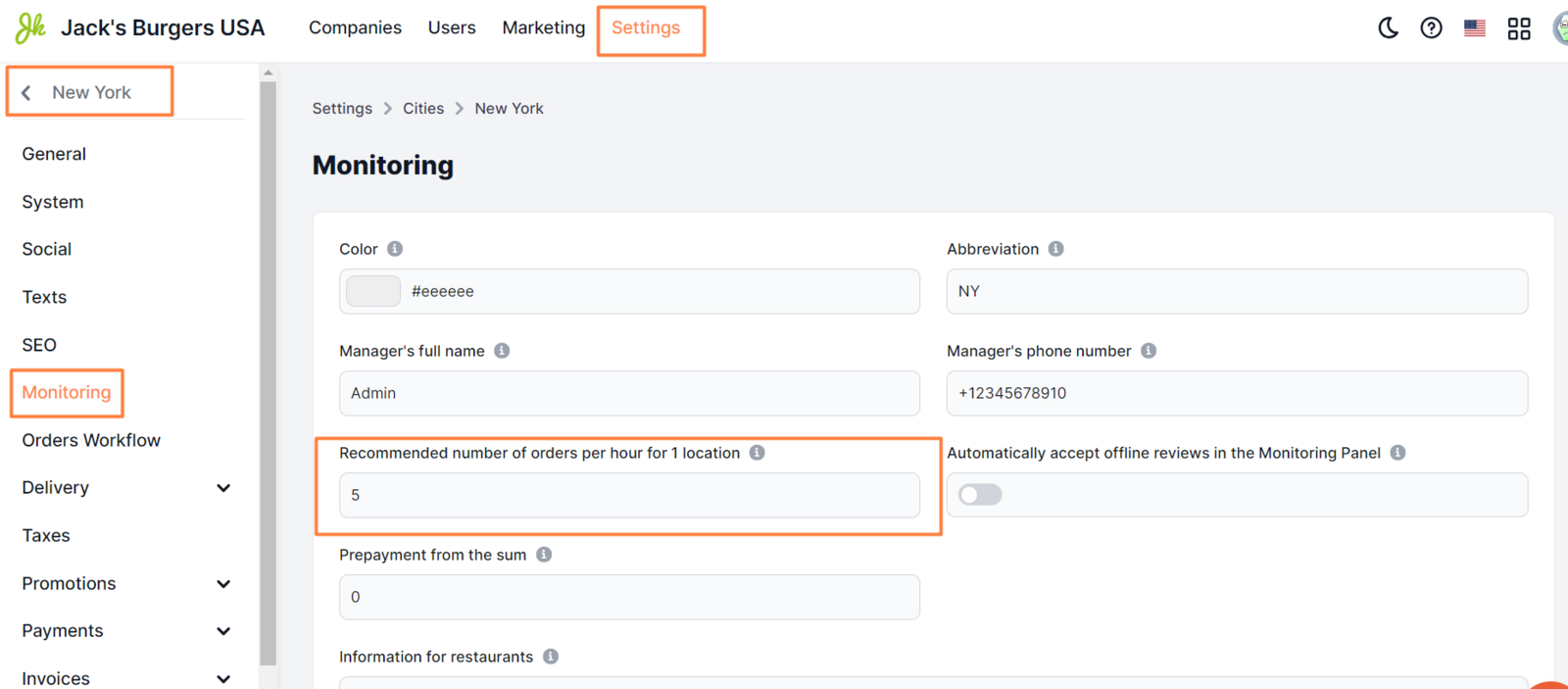
- In the Control Panel, click Settings → go to the Cities tab.
- Locate the city you need and click the pencil icon.
- Click the Monitoring tab.
- In the Recommended number of orders per hour for 1 location field, set the maximum number of orders.
- Click Save.
In case of exceeding the limit, the excess will be highlighted in red when accepting a new order in the Dots Business app.
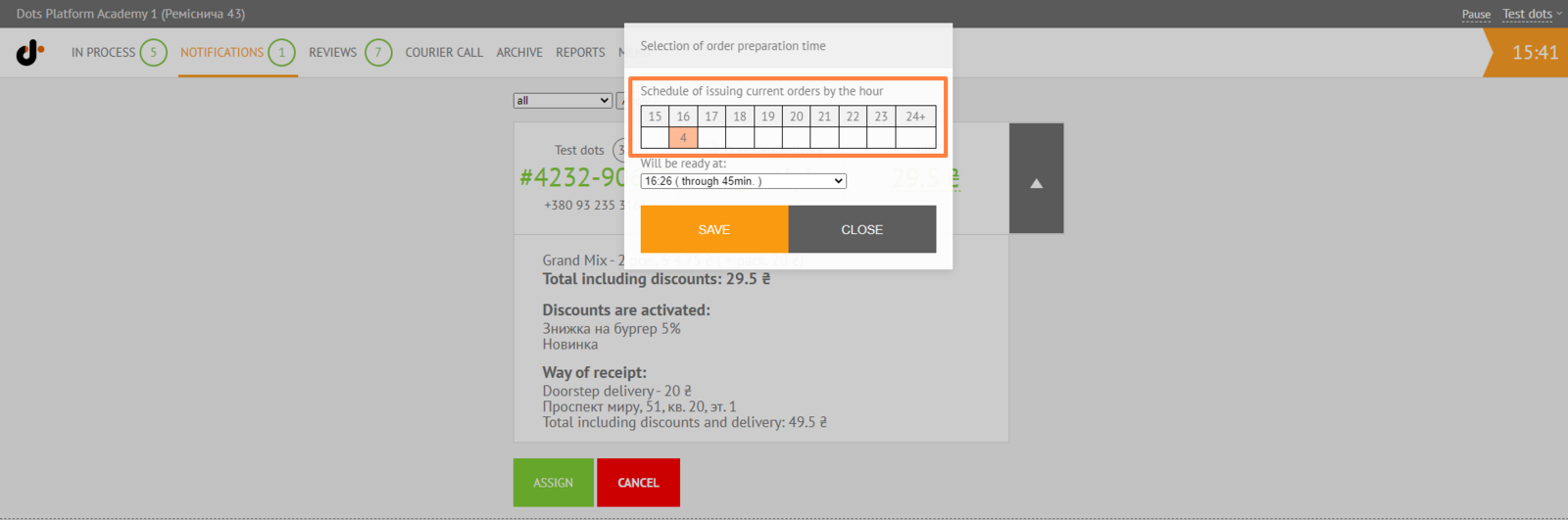
Important: The value is for informational purposes only. The cashier will be able to accept an order for a specific hour, even if the value exceeds the limit.
Tip: The value applies to all city companies and their locations by default, unless you set a different value in the ** location’s settings **
Link to this article: here
Was this article helpful?
Thanks for your feedback!